
As explained in our Sales Tax Discrepancy article, Acctivate may round sales tax differently than QuickBooks when Tax Groups are used. When this occurs, Acctivate creates a Sales Tax Discrepancy item in QuickBooks to account for the minor difference.
If Sales and COGS accounts in Acctivate are mapped by Product Class, and a Product Class is defined for the Non-standard Product Class option (Configuration Manager → Inventory → Inventory Options), the Sales Tax Discrepancy item will use the income account associated with the Non-standard Product Class.
In some cases, the Acctivate sync may be unable to create the Sales Tax Discrepancy item automatically. These scenarios will result in the following sync errors.
Error
Could not determine which sales account to use when creating the Other Charge Item to be used for tax rounding discrepancies. Please create in QuickBooks an Other Charge Item named “Tax Discrepancy”, then synchronize again.
Solution
This error can occur in one of the following scenarios:
-
The sync is run by a QuickBooks user who does not have administrator privileges.
- Sales and COGS accounts are mapped using a method other than Product Class (for example, Customer Types or Branches).
To resolve this error, create the the Sales Tax Discrepancy item in QuickBooks (see below).
Error
Could not determine which sales account to use when creating the Other Charge Item to be used for tax rounding discrepancies. Please set the default Non-standard Product Class in Acctivate Configuration Management, or create in QuickBooks an Other Charge Item named "Tax Discrepancy", then sync again.
Solution
This error occurs because a default Product Class is not defined in Configuration Manager → Inventory → Inventory Options. Set a value for the Non-standard Product Class option to resolve the issue.
Error
Could not determine sales account for product class {Default Non-standard Product Class} in order to create the Other Charge Item used for tax rounding discrepancies. Please review the account selection for that Product Class in Acctivate Configuration Management.
Solution
This error indicates that a default Product Class is defined, but its Sales GL account is missing.
Set a Sales GL account in Configuration Manager → Inventory → Product Class to resolve the issue.
You can easily resolve any of these errors by creating the the Sales Tax Discrepancy item in QuickBooks Desktop manually. The following steps can be taken to set this up in QuickBooks:
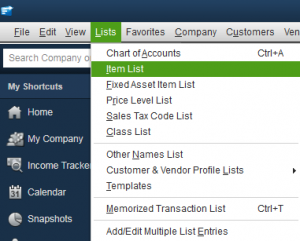
- Open QuickBooks and go to the Lists menu at the top of the screen, then click on “Item List”.
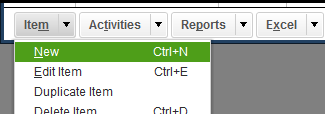
- In Item List window, click the Item drop down menu at the bottom of the window, then select “New” (or use the shortcut Ctrl + N)
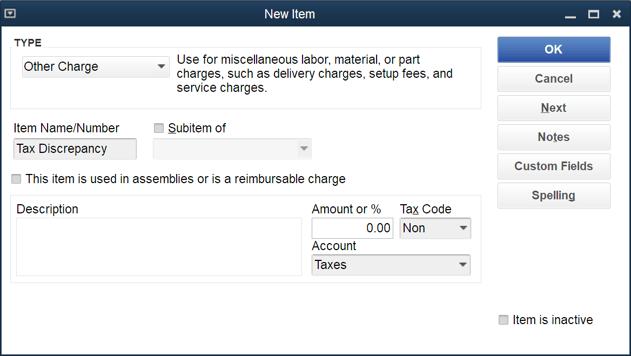
- A new window will appear, allowing you to enter the information about the new item. Select Other Charge as the Type, Tax Discrepancy as the Item Name, and select an expense account such as “Taxes” as the account. Be sure that the Tax Discrepancy item is setup as a non-taxable item.
- Once your new item looks like the screenshot below, click “OK” to create the item.
Finally, run a sync with Acctivate. If you followed the steps above, the original sync error should no longer appear.
CA and UK editions of QuickBooks have a customer tax configuration option which, if enabled, will override the tax code of the Tax Discrepancy item. In QuickBooks, navigate to Edit > Preferences > Sales Tax. Click on the Company tab and uncheck the "Use Customer Tax Code" checkbox.