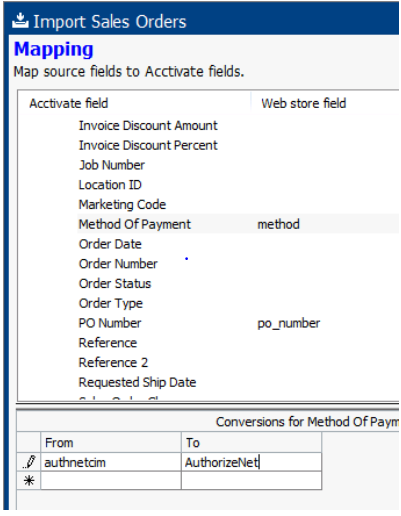
Web stores have their own lists of data which may not always map directly to your Acctivate lists. For example, your web store may have distinct payment method values, Ship Vias, or terms codes.
In some cases there may be slight name variance, for example "American Express" on the web store versus "Amex" in Acctivate and QuickBooks. In other cases, multiple values may need to be consolidated into a single value. For example, "Visa" and "Mastercard" on the web store may both need to be brought into Acctivate as the "Web Store CC" payment method.
In most cases, you'll receive an error if an unrecognized web store list value is encountered. These scenarios can be handled using the web store template's conversion table, which converts the web store value to Acctivate's value.
- In Acctivate, open the Web Store Sync window from the Web Store menu at the top of Acctivate.
- Click Configure.
- Click on your web store template and click Edit.
- Click Next until you reach the Mapping screen.
- Expand the Order Document section, then expand Order.
- Scroll down to the field you want to convert, for example the Method Of Payment field, and click on the row to highlight it. At the bottom of the window, click Show Conversions.
- In this table, enter the From value and the To value. The From value should be the exact name from the web store or the sync message indicating an unrecognized value. For example, importing a web order with "American Express" as the payment method may cause an Unrecognized Payment Method error. In the From field, enter the unrecognized value (e.g., American Express) and set the To value to the name as it is in Acctivate (e.g., Amex). You can check the Default value dropdown to see the list of valid Acctivate values.
Set up any additional conversions that are needed and click Next. On the import screen, you can proceed with an import or you can close the window at which time you'll be asked if you want to save your changes.